ICO Converter: Create Professional Favicons from Images (Free & Instant)
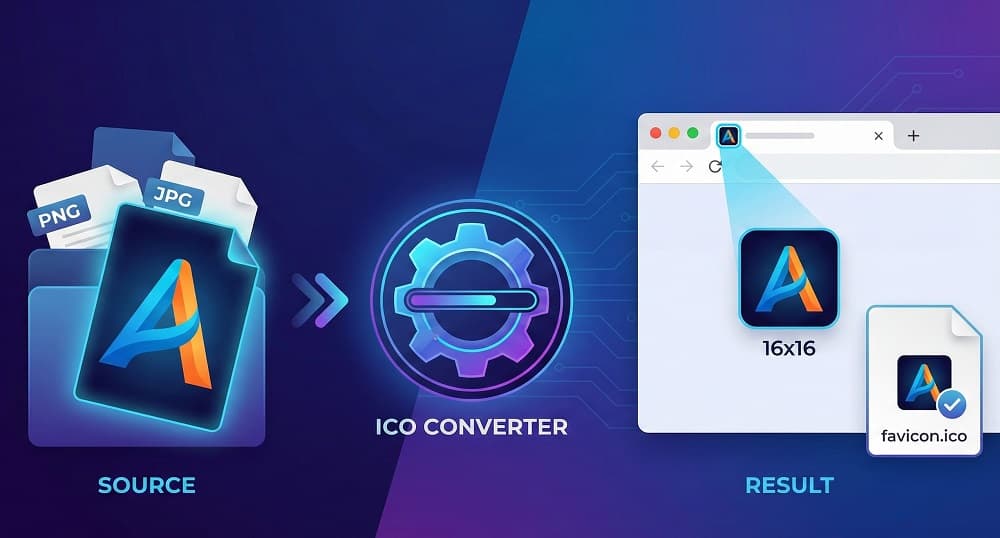
Your website’s favicon is often the very first thing a user sees. It sits on the browser tab, anchoring your brand identity before the page even loads.
Yet, many developers and site owners struggle with blurry, distorted, or missing icons. You upload a high-quality logo, but it shrinks down to a pixelated mess. Or worse, it refuses to show up in Google Search results at all.
The problem isn't your logo; it's the file format.
To ensure your brand looks sharp on everything from a 4K monitor to an old Windows taskbar, you need a proper .ico file. This guide explains exactly how to create one using Online Tools Free, why format matters, and how to fix common display errors.
PNG to ICO Converter: https://onlinetoolsfree.com/png-to-ico
JPG to ICO Converter: https://onlinetoolsfree.com/jpg-to-ico
What is an ICO File and Why Do Websites Still Use It?
You might wonder: "Why can't I just use a PNG?"
While modern browsers support PNG favicons, the ICO format remains the industry standard for a specific reason: it is a container.
Unlike a standard image file that holds one picture, a single .ico file can contain multiple versions of your icon at different sizes and color depths.
This allows the browser to intelligently serve the 16x16 pixel version for a tab and the 32x32 pixel version for a desktop shortcut, all from one file.
Using a dedicated ICO converter ensures your site maintains backward compatibility with older browsers (like Internet Explorer) while providing the crispest possible image for modern OS interfaces.
The "Golden Sizes": Essential Dimensions for Favicons in 2026
One size does not fit all. If you only provide a 16px icon, it will look terrible when a user saves your site to their iPhone home screen.
Here are the critical dimensions you must cover to achieve "Topical Authority" in the eyes of search engines and browsers:
- 16x16 pixels: The standard size for browser tabs.
- 32x32 pixels: Used for desktop taskbars and Windows "Start" menu shortcuts.
- 48x48 pixels: Crucial for SEO. Google requires a favicon to be a multiple of 48px square to appear in search results.
- 180x180 pixels: The standard for Apple Touch Icons (iPhone/iPad home screens).
- 192x192 & 512x512 pixels: Required for Android Chrome and Progressive Web Apps (PWA).
Step-by-Step: How to Create a Favicon from Any Image
Creating a compatible favicon doesn't require expensive software like Photoshop. You can generate a multi-size .ico file in seconds using our free tool.
Follow this simple process to get your favicon live:
- Prepare your image: Start with a square image (aspect ratio 1:1). Ideally, use a PNG with a transparent background that is at least 512x512 pixels.
- Access the tool: Go to the Online Tools Free website.
- Upload your file: Locate the ICO Converter tool and drag your PNG or JPG file into the upload box.
- Select your sizes: Choose the output dimensions you need (we recommend including 16x16 and 32x32 at minimum).
- Convert and Download: Click the convert button. The tool will process the image instantly. Download the resulting
.icofile to your computer. - Upload to your server: Place the file in the root directory of your website and add the
<link rel="icon" href="/favicon.ico">tag to your HTML header.
ICO vs. PNG vs. SVG: Which Format is Best?
There is often confusion about which format is superior. While SVG is excellent for scalability, it lacks universal support for every use case.
Here is a breakdown of when to use each format:
ICO Format
- Browser Support: Universal (99.9%). It works on virtually every browser, including very old versions of Internet Explorer.
- Scalability: Low (Raster-based). It uses fixed pixels, so it doesn't scale infinitely like a vector.
- Key Feature: It is a Multi-size Container. This is its biggest advantage, as it can hold multiple sizes (16px, 32px, 48px) in a single file.
- Transparency: Yes, it supports transparency.
- Primary Use Case: This should be your Main Favicon file to ensure a "fallback" for any browser or system that doesn't support newer formats.
PNG Format
- Browser Support: Excellent, but limited to modern browsers.
- Scalability: Low (Raster-based). Like ICO, it loses quality if resized too large.
- Key Feature: It does not support multiple sizes in one file; you need separate files for separate sizes.
- Transparency: Yes, excellent alpha channel transparency.
- Primary Use Case: Best for Mobile Icons (iOS/Android) and Progressive Web Apps (PWA).
SVG Format
- Browser Support: Good, but strictly for modern browsers.
- Scalability: High (Vector-based). It stays crisp at any size, from tiny tabs to huge screens.
- Key Feature: It supports code-based styling (CSS), making it the only format that can adapt to Dark Mode automatically.
- Transparency: Yes.
- Primary Use Case: Ideal for Dark Mode/Theming and future-proofing your site design.
Troubleshooting: Why Is My Favicon Not Showing in Google Search?
Nothing is more frustrating than a missing icon in Search Engine Results Pages (SERPs). If you see a generic globe icon next to your URL in Google, check these three common issues:
- The 48px Rule: Google explicitly states that favicon files must be a multiple of 48px square (48x48, 96x96, etc.). If you only uploaded a 16x16 file, Google will likely ignore it.
- Crawling Issues: Ensure your
favicon.icofile is not blocked by yourrobots.txtfile. Googlebot needs to be able to download the image to verify it. - Caching: Browsers and search engines cache favicons aggressively. If you updated the file recently, it may take days or even weeks for Google to reflect the change. You can try to force a refresh by adding a version string to your filename (e.g.,
favicon.ico?v=2).
Best Practices for Designing a Readable 16-Pixel Icon
Shrinking a complex logo down to 16 pixels often renders it illegible. To maintain brand consistency, follow these design rules:
- Simplify: Remove text. Text is unreadable at 16px. Use the first letter of your brand name or a simplified symbol instead.
- High Contrast: Use bold colors that stand out against both light (white/grey) and dark (black) browser tabs.
- Utilize Transparency: Always use a transparent background so your icon doesn't look like a box sticker.
- Canvas Space: Use the full canvas. Don't leave empty padding around the edges of your 16x16 grid; every pixel counts.
Frequently Asked Questions (FAQ)
Q: How do I create a favicon from an image?
Upload your image to an ICO converter.
Simply take your square PNG or JPG, upload it to the Online Tools Free converter, select your desired output sizes (16x16, 32x32), and download the .ico file.
Q: What is the best size for a favicon?
16x16 and 32x32 pixels are standard.
However, for Google Search visibility, you must also provide an icon that is at least 48x48 pixels. For mobile devices, 180x180 is recommended.
Q: Can I use a PNG as a favicon?
Yes, but with limitations.
Modern browsers support PNGs, but using an .ico file is still best practice for compatibility with older browsers and to bundle multiple icon sizes into a single file.
Q: Why is my favicon not showing up in Google Search?
It is likely too small or blocked.
Ensure your icon is at least 48x48 pixels, is accessible to Googlebot (check robots.txt), and is properly linked in your site's <head> tag.
Q: How do I convert a JPG to a transparent ICO?
Remove the background first.
JPGs do not support transparency. You must first convert the JPG to a PNG and remove the background, then use an ICO Converter to create the final favicon file.
Thanks for reading! Share this post if you found it helpful.