How to Convert PNG to JPG Online Without Losing Quality (Fast & Free)
You have the perfect image, but the file size is massive. You try to upload it to your website or attach it to an email, and you hit a wall: "File too large" or "Format not supported."
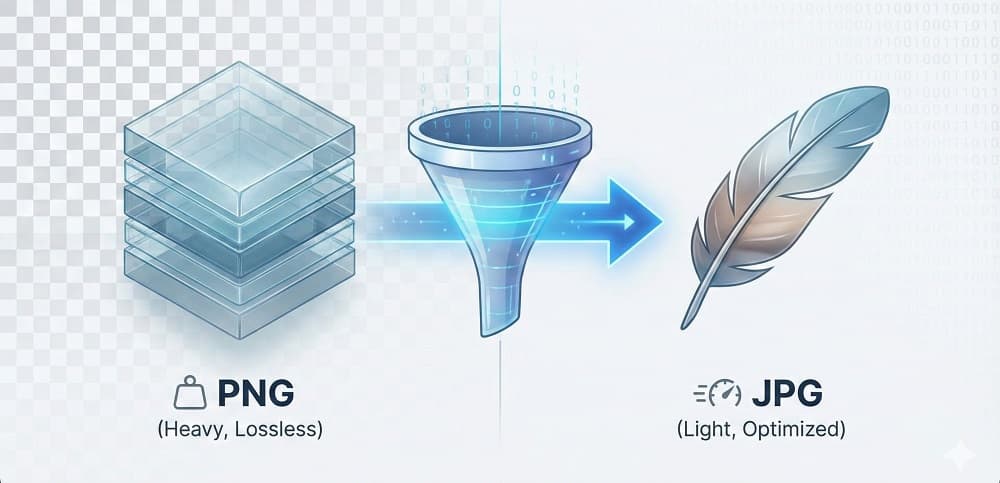
This is the classic PNG problem. While PNGs look great, they are heavy. They slow down web pages and clog up storage.
The solution isn't to delete the image; it's to optimize it. By converting your PNG to a JPG, you can reduce the file size by up to 80% without a noticeable drop in quality.
Here is exactly how to do it in seconds using Online Tools Free, and what you need to know about the process.
PNG vs. JPG: What’s the Real Difference?
Before you hit "convert," it helps to know what happens to your image data.
PNG (Portable Network Graphics) is a "lossless" format. It keeps every single pixel perfect, which is why the files are so big. It also supports transparency (those checkerboard backgrounds).
JPG (Joint Photographic Experts Group) is a "lossy" format. It uses smart compression algorithms to group similar colored pixels together. This drastically cuts file size but sacrifices a tiny bit of detail—usually invisible to the human eye.
How to Convert PNG to JPG Instantly (Step-by-Step)
You don't need expensive software like Photoshop to switch formats. You can do it directly in your browser with our secure tool.
Follow these simple steps:
- Open the Tool: Go to the PNG to JPG Converter on OnlineTools Free.
- Upload Your Images: Click the "Upload Images" button or simply drag and drop your PNG files into the box. We support batch processing, so feel free to drop in 20 files at once.
- Convert: The tool processes the files instantly. You will see the conversion progress bar move rapidly.
- Download: Click "Download All" to get a ZIP file of your new JPGs, or download them individually.
The "Transparency Trap": Why Backgrounds Change Color
One common confusion users face is the background color change.
You might upload a logo with a transparent background, but your downloaded JPG has a white box behind it. This is not a bug.
JPG technology does not support "Alpha Channels" (transparency). It requires every pixel to have a color. When our converter detects transparency, it must fill those empty pixels.
- Standard Practice: Most tools, including ours, fill the transparent area with White. This is standard for web use.
- The Fix: If you absolutely need a transparent background, you must stick with PNG or WebP formats.
Why Use OnlineToolsFree.com? (Security & Speed)
There are dozens of converters out there. Here is why thousands of users trust Online Tools Free for their daily workflow:
- Privacy First: We don't hoard your data. Your images are processed securely and deleted from our servers automatically after a short period.
- No Installation Required: We are entirely browser-based. Whether you are on Windows, Mac, Android, or iPhone, the tool works instantly.
- High-Quality Engine: We use advanced compression. We reduce the file size, not the visual fidelity. Your images stay sharp.
- 100% Free: No hidden paywalls, no "credits," and no sign-up required.
Frequently Asked Questions (FAQ)
Here are the answers to the most common questions about image conversion.
Does converting PNG to JPG lose quality?
Yes, but it is usually negligible.
JPG uses lossy compression to save space. However, Online Tools Free uses high-quality settings that minimize artifacting. For standard web use or social media, the visual difference is impossible to see, but the speed gain is massive.
How do I convert PNG to JPG without software?
Use a browser-based converter.
You do not need to install programs. Simply visit OnlineToolsFree.com, drag your files into the browser window, and let our cloud servers handle the heavy lifting. It saves hard drive space and keeps your computer clean.
Why did my background turn white after converting?
JPGs do not support transparency.
When you convert a transparent PNG, the empty pixels must be filled with a solid color. The industry standard default is white. If you need to keep the background clear, you must not convert the file to JPG.
Is PNG or JPG better for printing?
PNG is technically better, but high-res JPG is fine.
For professional printing, PNG (or TIFF) is preferred because it preserves all data. However, a high-resolution JPG (300 DPI) is perfectly acceptable for standard photo prints. Avoid using low-quality web JPGs for print.
Can I convert multiple PNGs to JPG at once?
Yes, using our Batch Processing feature.
You can select multiple files from your folder and upload them simultaneously. Our tool will convert the entire queue at once, allowing you to download a single ZIP file containing all your optimized images.
Ready to optimize your images?
Stop letting large files slow you down. Try the PNG to JPG Converter now and experience the difference in speed and quality.
Thanks for reading! Share this post if you found it helpful.