How to Convert WebP to JPG Instantly: The Ultimate Fix for Unsupported Files
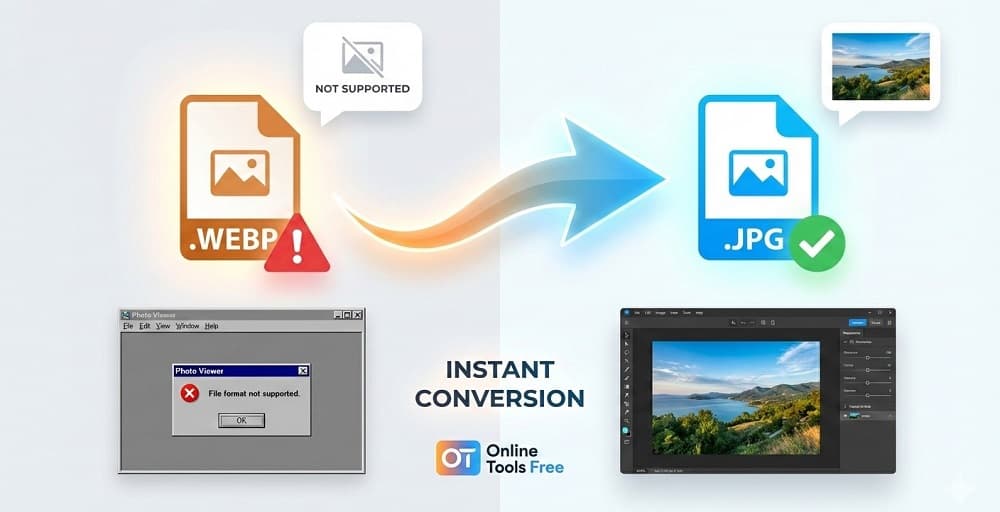
You’ve found the perfect image. You right-click, save it to your desktop, and try to open it. But instead of your photo viewer launching, you get an error message: "File format not supported."
Or worse, it opens in a web browser instead of your image editor.
This is the "WebP problem." It is frustrating, but it is not a glitch. It is simply a compatibility gap between modern web standards and your computer’s software.
The good news? You can fix it in seconds without installing any software.
Here is how to instantly convert WebP files to universal JPGs using Online Tools Free.
Why Are My Images Saving as WebP?
Before we fix the file, it helps to know why this is happening. You aren't doing anything wrong.
Google developed WebP to make the internet faster. WebP images are roughly 30% smaller than standard JPGs or PNGs, which means websites load much quicker on your phone and computer. Because of this speed advantage, most modern websites force images to save in this format automatically.
The downside? Many older tools—like standard photo viewers, older versions of Photoshop, and even some email clients—don't know how to read them yet. They expect a JPG.
The Quick Fix: How to Convert WebP to JPG Online
You don’t need to be a tech expert to solve this. You just need a simple conversion tool. We built our WebP to JPG Converter to handle this specific task securely and quickly.
Follow these three steps to make your image compatible with everything:
- Go to the Tool: Open the WebP to JPG Converter on OnlineToolsFree.
- Upload Your Files: Drag and drop your WebP images into the box. We support batch conversion, so you can fix multiple files at once.
- Convert & Download: Click the "Convert" button. In moments, your files will be transformed into high-quality JPGs ready for download.
That’s it. No software installation, no watermarks, and no sign-up required.
WebP vs. JPG: The Battle of Formats
Should you always convert your images? Not necessarily. It depends on how you plan to use them.
WebP is superior for websites because it keeps pages fast. JPG is superior for compatibility, printing, and editing.
Here is the breakdown of when to use which format:
- Best Used For: Use WebP for website speed and performance. Use JPG for editing, printing, and sharing.
- File Size: WebP creates ultra-small files due to high compression. JPG files are generally larger with standard compression.
- Compatibility: WebP has limited support, working mostly in browsers and modern apps. JPG is universal and works on virtually everything.
- Transparency: WebP supports transparency (similar to PNG). JPG does not support transparency; any transparent background will turn white.
- Quality: WebP focuses on high efficiency. JPG focuses on high fidelity.
Important Note on Transparency: If your WebP image has a transparent background (no background), converting it to JPG will turn that transparent area white. If you need to keep the transparency, you should convert it to PNG instead.
Is Converting WebP to JPG Safe? (Quality & Privacy)
A common concern is quality loss. Since JPG is a "lossy" format, does converting ruin the image?
Technically, whenever you convert to JPG, a tiny amount of data is discarded to save space. However, our converter at OnlineToolsFree.com uses advanced algorithms to minimize this loss. For the human eye, the difference is virtually unnoticeable. Your photos will remain sharp and vibrant.
What about privacy?
We prioritize your security. When you use our tools:
- Files are processed securely.
- We do not store your personal photos on our servers permanently.
- Your data remains yours.
Frequently Asked Questions (FAQ)
How do I convert a WebP file to JPG?
Use a free online converter.
Simply visit OnlineToolsFree.com, upload your WebP file, and select "JPG" as the output. The tool processes the file instantly in your browser, allowing you to download a compatible version immediately.
Why are my downloaded images saving as WebP?
Websites use WebP for speed.
Google created the WebP format to reduce file sizes without sacrificing quality. This helps web pages load faster. However, your computer's default image viewer may not yet support this newer format.
Is WebP better than JPG?
It depends on the use case.
For websites, WebP is better because it loads faster. For editing, printing, or sending files to friends, JPG is better because it is universally compatible with all devices and software.
Does converting WebP to JPG lose quality?
Yes, but it is negligible.
JPG is a lossy format, so a small amount of pixel data is compressed. However, high-quality converters like ours ensure the visual difference is invisible to the naked eye.
How do I open WebP files on iPhone?
Update to iOS 14 or convert the file.
iPhones running iOS 14 or later can view WebP files natively. If you have an older iPhone or need to edit the photo in an app that doesn't support WebP, you must convert it to JPG first.
Thanks for reading! Share this post if you found it helpful.