How to Convert JPG to PNG Online: The Guide to High-Quality, Transparent Images
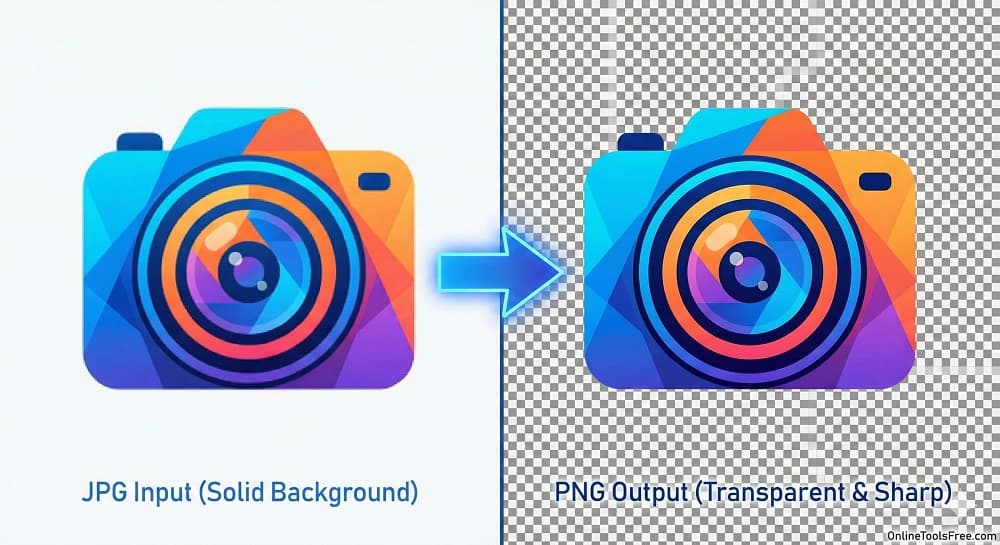
You have the perfect image, but the file format is wrong. Maybe you tried to upload a logo to your website, and that ugly white box around the edges ruined the design. Or perhaps you need a crisp graphic for a presentation, but your current file looks blurry and pixelated.
You don't need expensive software like Photoshop to fix this. You shouldn't have to download suspicious apps just to change a file extension.
You need a fast, secure solution. The JPG to PNG Converter on OnlineToolsFree handles this process instantly in your browser. This guide explains why PNG is the superior format for graphics and how to make the switch without losing quality.
JPG vs. PNG: What is the Actual Difference?
Before you convert your files, it helps to understand why these formats behave differently. They use different compression methods to save data.
- JPG (Joint Photographic Experts Group): This format uses lossy compression. It deletes some image data to keep file sizes small. It is excellent for photographs with millions of colors but terrible for text and sharp lines.
- PNG (Portable Network Graphics): This format uses lossless compression. It preserves every single pixel exactly as it was created. It is the standard for logos, icons, and detailed graphics.
Why You Need a PNG: Transparency and Quality
Most users switch to PNG for two specific reasons: transparency and sharpness.
The Power of the Alpha Channel (Transparency)
JPG files are "flat." They do not support transparency. If you save a logo with a transparent background as a JPG, the computer automatically fills the transparent areas with solid white.
PNG files contain an Alpha Channel. This is a layer of data that tells the computer which pixels should be visible and which should be invisible. If you want your image to blend seamlessly into a website header or a slide deck, you must use PNG.
Preserving Text and Sharp Lines
Have you ever seen an image with text that looks "smudged" or has weird noise around the letters? That is a compression artifact common in JPGs. Because PNG is lossless, text remains crisp and readable, making it the ideal choice for screenshots and digital diagrams.
How to Convert JPG to PNG using OnlineToolsFree.com
We built our tool to be the fastest way to bridge the gap between these formats. There is no signup required, and we do not store your files.
Follow these simple steps:
- Navigate to the Tool: Go to the JPG to PNG Converter on OnlineToolsFree.com.
- Upload Your Image: Click the "Upload" button or simply drag and drop your JPG file directly onto the page. You can upload multiple files at once for batch processing.
- Automatic Conversion: The tool instantly processes the image. It rewrites the file data from lossy to lossless.
- Download: Click the "Download" button to save your new high-quality PNG to your device.
Common Myths: Does Converting to PNG Remove the Background?
This is the most common confusion among users.
Converting a JPG to a PNG does not automatically remove the background.
Think of the file format as a container.
- JPG: A container that cannot hold transparency (it forces a white background).
- PNG: A container that can hold transparency.
When you use our converter, you are moving your image into a container that supports transparency. However, if the image currently has white pixels behind the subject, those pixels are still there. To make the background transparent, you must use a "Background Remover" tool or an editor after converting the file to PNG.
When NOT to Use PNG (Optimizing for Speed)
While PNG offers higher quality, it comes at a cost: file size. Because PNG saves every pixel, the files are significantly larger than JPGs.
If you are running a website, using massive PNG files for standard photographs will slow down your page loading speed. This hurts your SEO and user experience.
Here is a quick breakdown of when to use which format:
- Compression: JPG uses Lossy compression (which deletes data to save space), while PNG uses Lossless compression (which keeps all data intact).
- Transparency: JPG does not support transparency. PNG supports transparency, making it the only choice for clear backgrounds.
- File Size: JPG files are generally Small and Efficient, whereas PNG files are often Large and Heavy.
- Best Used For: Choose JPG for photographs and blog post covers. Choose PNG for logos, icons, screenshots, and text.
Frequently Asked Questions (FAQ)
Does converting JPG to PNG remove the background?
No, the conversion only enables transparency support.
The conversion changes the file structure to allow for an Alpha Channel, but it does not erase existing pixels. You must use a background removal tool to delete the white background after conversion.
Is PNG higher quality than JPG?
Yes, PNG uses lossless compression.
This means no image quality is lost when the file is saved. JPG uses lossy compression, which sacrifices detail to reduce file size. PNG is superior for sharp edges, text, and graphics.
How do I convert JPG to PNG for free?
Use the browser-based tool on OnlineToolsFree.com.
Simply upload your JPG file, wait a second for the processing to finish, and download your new PNG. There is no cost, no watermark, and no software installation required.
Why is my PNG file size larger than the JPG?
Because PNG preserves more data.
Since PNG does not discard image information to save space, the resulting file is heavier. If the file is too large for your needs, consider using a PNG compressor tool to reduce the size.
Can I convert multiple JPGs to PNG at once?
Yes, our tool supports batch processing.
You can select multiple JPG images from your computer and upload them simultaneously. OnlineToolsFree.com will process them in parallel, saving you time.
Thanks for reading! Share this post if you found it helpful.