Base64 to Image Decoder: Visualize & Debug Encoded Strings Instantly
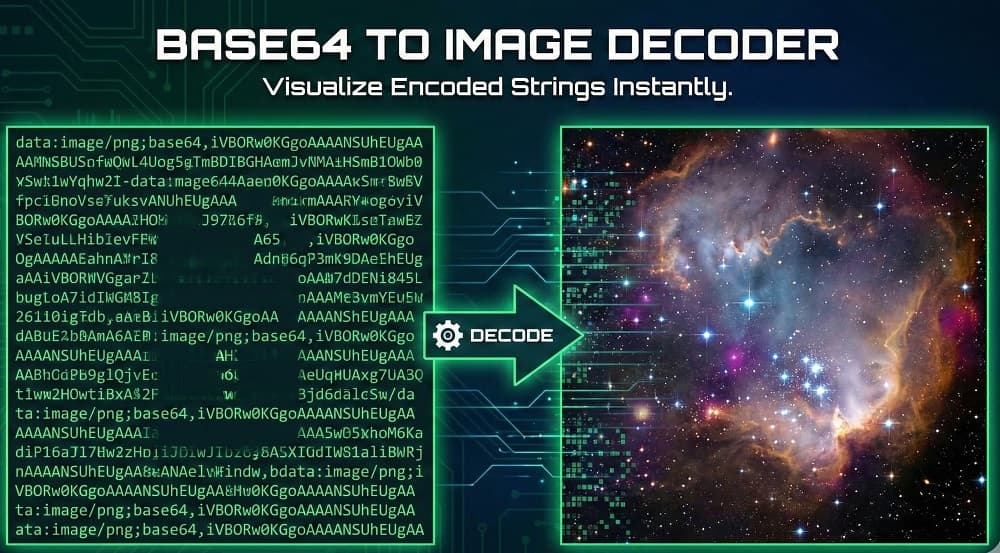
You open a code file or an API response, expecting to see an image file path. Instead, you are greeted by a massive wall of random alphanumeric characters starting with data:image/.
It looks like gibberish. It clutters your editor. And worst of all, you have no idea what image that text actually represents. Is it the correct logo? Is it a broken icon?
You don't need to guess, and you certainly don't need to write a script just to see it. OnlineToolsFree solves this instantly. Our Base64 to Image Decoder translates that chaotic string back into a visible image file, right in your browser.
Here is how to decode your data, why developers use these strings, and how to troubleshoot common errors.
What is Base64 Decoding? (The Core Concept)
At its simplest, Base64 is a way to translate binary data (like an image) into plain text (ASCII characters).
Computers store images as binary code—sequences of 0s and 1s. However, some systems (like email protocols or HTML files) are designed to handle text, not raw binary. If you try to paste raw binary data into an HTML file, it breaks.
Base64 acts as a bridge. It takes that binary data and maps it to a set of 64 safe, printable characters (A-Z, a-z, 0-9, +, and /).
Decoding is simply the reverse process. It takes those text characters and reconstructs the original binary file so your computer can render the picture again.
How to Convert Base64 Strings to Images (Step-by-Step)
You don't need complex software to restore your image. You just need the text string. Follow these steps to visualize your data immediately using OnlineToolsFree.
Step 1: Copy Your Data URI
Locate the string you want to decode. It usually begins with a header like data:image/png;base64, followed by the long code. Copy the entire string.
Step 2: Use the OnlineToolsFree Decoder
Navigate to our Base64 to Image Decoder tool. Paste your string into the input box. Our tool supports various formats, including PNG, JPEG, GIF, and WEBP.
Step 3: Verify and Download
The tool processes the text instantly. You will see a preview of the image appear on the screen.
- Is it the right image? Great.
- Need the file? Click the "Download" button to save it as a standard image file to your device.
Why Use Base64? Pros, Cons, and Use Cases
If Base64 strings are so long and messy, why do developers use them? It usually comes down to performance optimization or architectural necessity.
The Trade-Off: External Files vs. Embedded Base64
Choosing between a standard image file (like logo.png) and a Base64 string involves a specific trade-off between requests and size.
- HTTP Requests: A standard external image requires the browser to make a separate network request for every single file. A Base64 string requires zero extra requests because the image data is embedded directly into the code itself.
- File Size: Standard files are optimized and remain at their original size. Base64 strings are significantly larger, adding approximately 33% more data overhead to the file.
- Caching: Browsers can easily cache standard external files for future visits. Base64 strings are harder to cache individually; the browser must cache the entire HTML or CSS file they live in.
- Rendering: Standard images must wait for the specific download to finish before they appear. Base64 images render instantly because they load simultaneously with the rest of the HTML.
- Best For: Use standard files for large photos and gallery images. Use Base64 for tiny icons, logos, and critical UI elements where immediate loading speed is essential.
The 33% Size Overhead Rule Base64 is not efficient storage. To represent every 3 bytes of binary data, Base64 requires 4 text characters. This results in a file size increase of roughly 33%.
- Do not use Base64 for large photography. It will bloat your HTML and slow down your page load speed.
- Do use it for small icons (under 10KB) to eliminate the server round-trip.
Troubleshooting: Why Is My Base64 Image Not Showing?
Sometimes you paste the string, and nothing happens. Or worse, you see a "broken image" icon. Here are the most common culprits.
- Missing Headers: A valid Data URI must often start with the definition:
data:image/[type];base64,. If you only copied the raw code after the comma, the browser might not know it is an image. - Whitespace Issues: Did you copy the string from a code editor? Editors often insert line breaks or spaces for formatting. These invisible characters can break the decoding process. OnlineToolsFree often sanitizes this for you, but severe formatting errors can still cause failure.
- Truncated Strings: Base64 strings are incredibly long. It is easy to accidentally miss the last few characters when highlighting. Even one missing character corrupts the entire file.
Security & Privacy: Is It Safe to Decode Online?
This is the most critical question for developers working on proprietary apps.
- "If I paste my company's private assets here, do you save them?"
At OnlineToolsFree, the answer is no.
We utilize Client-Side Processing. When you paste your Base64 string into our decoder, the conversion happens entirely within your web browser using JavaScript. The image data is never uploaded to our servers. It stays in your device's memory. This ensures that your private assets, icons, or sensitive data remain secure and under your control.
Frequently Asked Questions (FAQ)
How do I convert a Base64 string to an image?
Copy the string and paste it into a decoder.
Use a tool like the OnlineToolsFree Base64 Decoder. Paste the text starting with "data:image..." into the input field. The tool automatically reconstructs the binary data and displays the image for download.
Does Base64 increase image size?
Yes, it increases file size by approximately 33%.
Base64 uses 4 ASCII characters to represent every 3 bytes of binary data. This overhead means it is inefficient for large images but useful for small icons where saving an HTTP request is worth the extra bytes.
Why is my Base64 image not displaying?
The string is likely corrupt, truncated, or missing headers.
Ensure your string starts with the correct header (e.g., data:image/png;base64,). Also, check for accidental spaces or line breaks copied from your code editor, as these invalidate the decoding process.
Is Base64 secure for hiding images?
No, Base64 is not encryption.
It is an encoding scheme for data transport, not security. Anyone can decode a Base64 string back into the original image using a simple tool. Never use it to hide sensitive information.
What is the purpose of Base64 image decoding?
To debug and visualize embedded data.
Developers decode Base64 strings to verify that the data embedded in their HTML, CSS, or JSON responses is actually the correct image and has not been corrupted during transfer.
Thanks for reading! Share this post if you found it helpful.